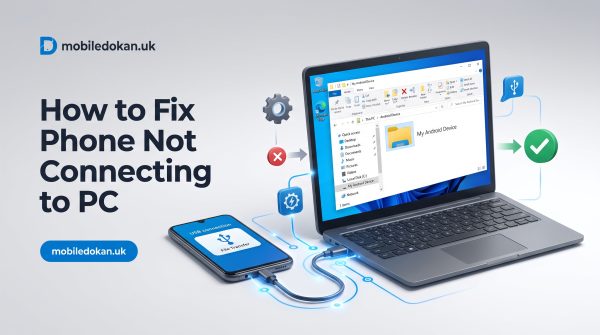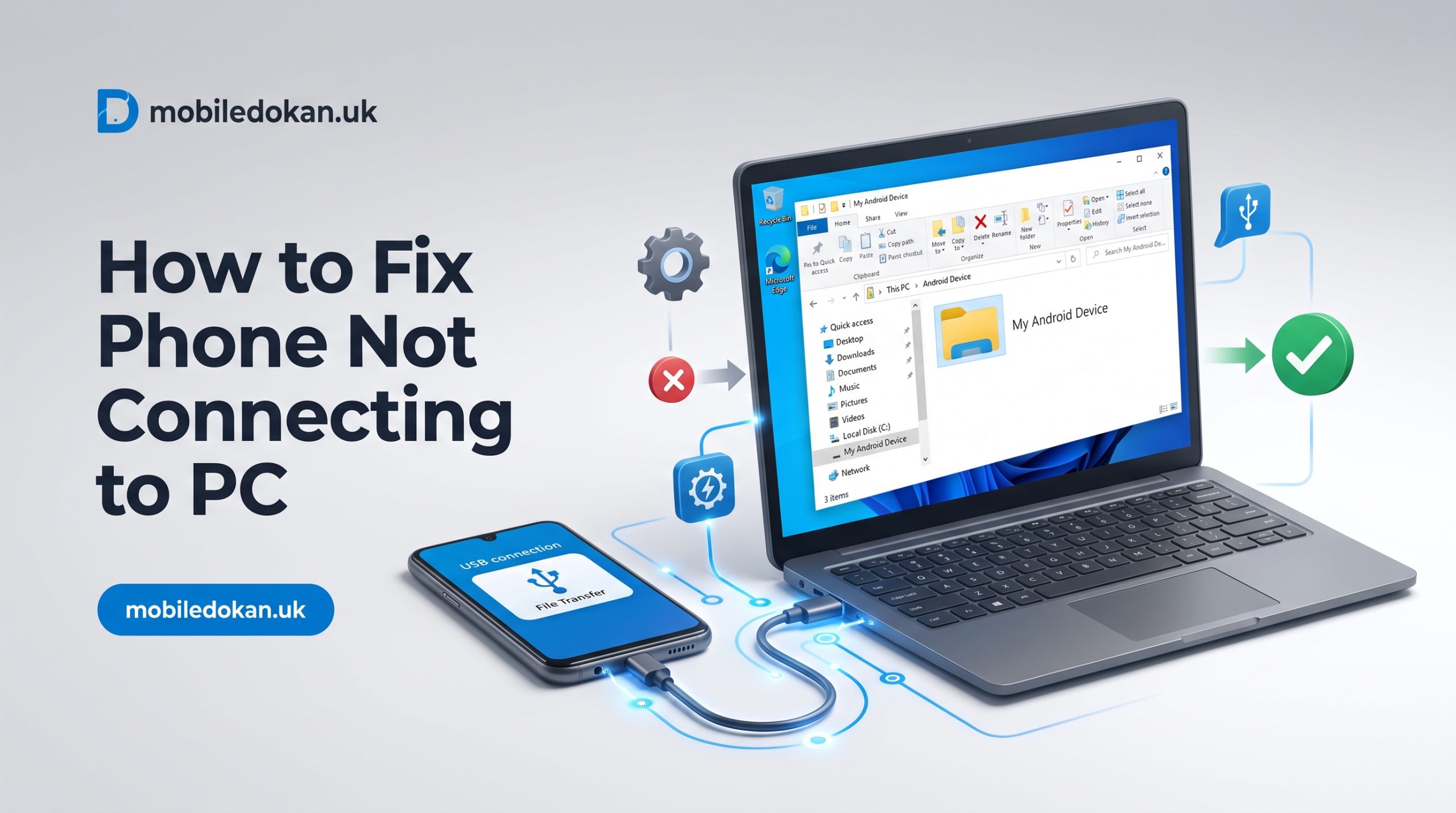
How To Fix Phone Not Connecting To PC: You plug your phone into your PC, ready to transfer a couple of photos, but there’s just no sign of life coming from your computer. The phone charges perfectly fine, but it’s like the PC doesn’t even acknowledge that the device is connected. If you’ve encountered this issue, you’re not alone.
It’s one of the most common tech problems out there. The worst part is that there’s a veritable stack of reasons as to why it could be happening. From a defective cable to a forgotten setting buried deep in your phone’s menu, almost anything can be the reason your phone won’t connect to your PC. But don’t worry – most of the time, this issue can be easily resolved by anyone without any technical expertise.
This article will cover all of the potential causes of a phone not connecting to a PC, and how the situation can be remedied. Whether it’s a Windows 10 or Windows 11 PC, and whether you’re using a USB or Bluetooth connection, you’ll find a solution here.
Why is my phone not connecting to PC with USB cable?
Before we get into solutions, it’s good to understand what could potentially be the cause of the issue in the first place.
When connecting a phone to a computer with a USB cable, there are a handful of likely reasons why the PC doesn’t recognize your Android or iPhone:
- The cable in use only charges the phone, and doesn’t allow for data transfer
- Your phone’s USB connection mode is set to “charging only”
- Outdated or missing PC drivers
- A defective USB port on either the phone or the computer
- The phone security software on your PC is blocking connection
- The phone’s operating system requires a reboot to recognize the connection
Once you understand what the likely causes of the issue are, fixing it becomes a matter of simply eliminating each one until the problematic element is found and remedied.
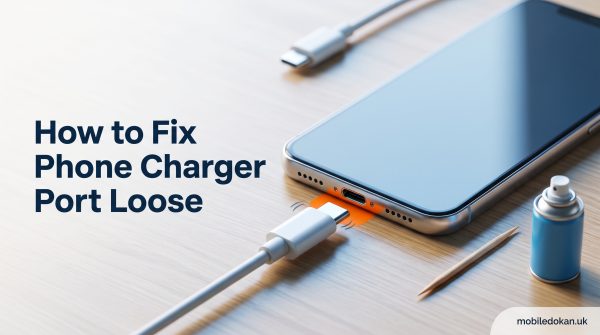
Read Also: How to Fix Phone Charger Port Loose
Quick test: Is it the cable, the port, or a PC setting?
Before doing any of the more involved solutions below, try the following diagnostic:
- Use a different cable to connect your phone to the PC
- Use a different USB port on your computer
- Try using a different computer, if possible
If your phone charges, but doesn’t appear as a device on your computer no matter what you do, then the issue is most likely a software one. Not a hardware one. If you manage to connect your phone to a different PC successfully, then the problem most likely lies with your original computer. Try connecting your phone to another PC with the same cable you used previously.
Read Also: How To Fix Phone Screen Unresponsive Touch
Phone only charging but not connecting to PC
This is arguably the most common form of this kind of issue. It almost always boils down to one simple cause: your phone is set to “charge only” USB mode. When this setting is on, your PC will not recognize your phone as a storage device. Many Reddit discussions feature users complaining about this exact problem, but the good news is that it often has a particularly simple fix.
Fix for Android phones
- Connect your phone to the PC with a cable you know supports data transfer (most cables that came with your phone should work)
- Swipe down on the notification shade of your phone to view active notifications
- Look for a message saying something like “Charging this device via USB”
- Tap on the notification to view options
- Select “File Transfer” or “Transfer files”, depending on your phone’s brand
If you don’t see this notification on your phone, you may need to change your USB connection mode in Settings > Connected devices > USB (or a similar setting, depending on your phone’s brand).
Changing the mode there to “File transfer” or “MTP” should enable your PC to recognize your phone properly.
After this change, your PC should either open your phone as a drive in File Explorer, or prompt you to do so.
Fix for iPhones
The iPhone situation is slightly different, as iOS uses a different protocol for USB connections.
If your iPhone is charging, but not appearing on your computer, you may need to do the following:
- Make sure that you’ve trusted your computer on your iPhone when prompted
- Ensure that you’re using an MFi-certified lightning or USB-C cable
- Verify that Apple Mobile Device Support is installed on your computer
How to fix phone not connecting to PC on Windows 10
Windows 10 manages USB device recognition differently from other operating systems, so it has its own particular fix. When a phone fails to be recognized by a Windows 10 PC, the following solutions have been proven to work:
1. Restart both devices
Though it seems too simple, many connection issues can be fixed by restarting both your phone and your computer.
2. Update or reinstall the USB driver
- Right-click the Start menu and select Device Manager
- Under “Portable Devices” on the left-hand side, right-click the device that represents your phone and select “Update driver”
If the driver fails to update, you may need to “Uninstall device” and reconnect your phone to Windows so that the program can reinstall the driver
3. Check for Windows updates
Windows can sometimes require a small update in order to recognize certain devices.
Head to Settings > Update & Security > Windows Update and install any available updates for your version of the OS.
4. Restart the Windows Portable Device Enumerator service
- Press Windows + R and type services.msc
- Find “Portable Device Enumerator Service” in the list
- Right-click the service and select “Restart”
5. Try a different USB controller
If your computer has both USB 2.0 and USB 3.0 ports, try plugging your phone into a different type of port.
Some older phones have issues with newer USB controllers.
How to fix phone not connecting to PC on Windows 11
Most of the potential solutions for Windows 11 are similar to those used in Windows 10, but there are a few changes that come with the new OS.
Check the following solutions if you’re running into issues with Windows 11:
1. Check your USB settings in the new Settings app
Go to Settings > Bluetooth & devices > USB and make sure that “Connection notifications for new USB devices” is toggled on.
This option, when disabled, prevents Windows from notifying you when a device is connected, and can oftentimes be the cause of a device not appearing at all.
2. Fix it with the updated Device Manager
The process for this fix is virtually identical to the one used in Windows 10:
- Right-click the Start menu and select Device Manager
- Under “Portable Devices”, right-click your phone and select “Update driver”
If your phone doesn’t appear at all in Device Manager, then it’s likely a USB connection mode issue on your phone, rather than an issue with the PC.
3. Run the Hardware and Devices troubleshooter
Go to Settings > System > Troubleshoot > Other troubleshooters
Though it’s somewhat hidden, this troubleshooter can often detect and fix issues that prevent devices from being recognized properly by the system.
If “Hardware and Devices” isn’t found in this menu, you may need to run msdt.exe -id DeviceDiagnostic from a Command Prompt instead
4. Disable Fast Startup
- Go to Control Panel > Power Options > Choose what the power buttons do
- Click “Change settings that are currently unavailable”
- Disable “Turn on fast startup” and restart your PC
Why won’t my phone connect to my computer with Bluetooth?
Connecting a phone to a computer with Bluetooth is a popular way to transfer data when USB connectivity is either inconvenient or unavailable. However, there are several potential reasons this kind of connection may fail.
Common reasons for Bluetooth connection issues
- Bluetooth is turned off on one of the devices
- The devices aren’t in pairing mode
- Pairing information is outdated
- The devices are too far away from each other
- Interference is preventing a stable connection
- The drivers on your PC are outdated
How to fix Bluetooth connection issues
- Make sure that Bluetooth is turned on and discoverable on your phone
- On your computer, make sure Bluetooth is turned on and that your device appears as discoverable
- On your PC, go to Settings > Bluetooth & devices and click “Add device”
- If your devices previously paired successfully but aren’t connecting now, try removing them from each other’s device lists and re-pairing them
- Update the drivers on your PC, as outlined in the Windows 10 section
- Make sure that your devices are close enough to each other for a stable connection
How to connect phone to PC with USB instructions
If you’re having trouble connecting your phone to your PC, or you just want a reference for the process, you can follow these simple steps:
- Use the cable that came with your phone, or a different cable that you know supports data transfer
- Plug the cable into a rear USB port on a desktop PC, if possible
- Unlock your phone, as some phones won’t allow data transfer with the screen locked
- Select the option to allow “File Transfer” or “MTP” (Media Transfer Protocol) from the notification that appears on your phone
- Wait for an automatic driver install to finish, if one is necessary for your PC to recognize your phone
- Open File Explorer – your phone should appear under “This PC”
If you frequently transfer photos or videos to your phone, it’s a good idea to bookmark this page, as the process is easy to forget, especially if you have to reset your USB settings after an update.
Other solutions for phone not connecting to PC
If none of the solutions above work, try the following:
- Make sure lint and dust aren’t preventing a stable connection
- Update your phone’s software, as manufacturers do occasionally release updates that fix USB-related bugs
- Reset your phone’s network settings, if possible (Settings > System > Reset options > Reset Wi-Fi, mobile & Bluetooth on Android, or Settings > General > Transfer or Reset iPhone > Reset > Reset Network Settings on iPhones)
- Make sure your phone security software isn’t interfering with the connection
- Try connecting your phone directly to the PC without using a USB hub, if applicable
Frequently Asked Questions: Phone not connecting to PC
Why is my Android phone not connecting to PC with USB cable?
The most common reason is that your phone’s USB connection mode is set to “charging only” — make sure you’ve selected the “File transfer” option in your phone’s USB settings.
Why does my phone only charge and not transfer files?
By default, many Android phones are set to “charge only” USB mode for security reasons, meaning that they don’t expose their internal storage to connected computers by default.
Do I need special drivers to connect my phone to Windows?
Most of the time, Windows will install the generic MTP (Media Transfer Protocol) driver by default. Some phone manufacturers (Samsung, LG, and others) have their own proprietary drivers that may need to be installed separately.
Can a bad cable really be the issue?
Absolutely — many cables that come with power banks, wall chargers, and other devices are only capable of supplying power to devices and not transferring data.
Why won’t my phone connect to my computer via Bluetooth even though it worked before?
This issue most commonly occurs when one of the devices involved in the connection had a system update, corrupting the previous pairing information.
Final Thoughts
A phone not connecting to a PC is rarely a serious hardware issue. It’s almost always something simple, like a misconfigured setting, a charge-only cable, or a driver issue that can be fixed with minimal technical expertise. If you see no sign of your phone connecting to your PC, check the most common solutions first. If those don’t work, move on to the more specific ones. After trying all of the solutions listed in this article, if your phone still refuses to connect to your PC, it may be a good idea to try connecting it to a different computer to see if the problem persists, which would indicate a hardware issue. And if you found this article helpful, make sure to bookmark it – USB connection settings on Android phones can be particularly finicky. You never know when you’ll need them again.