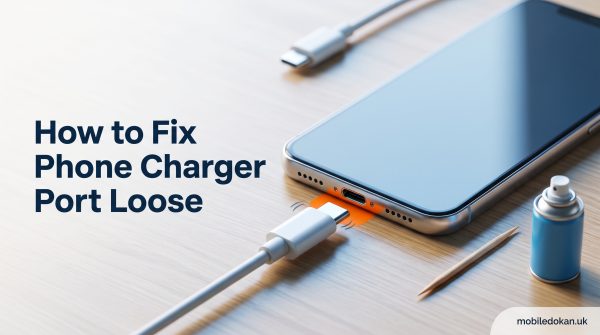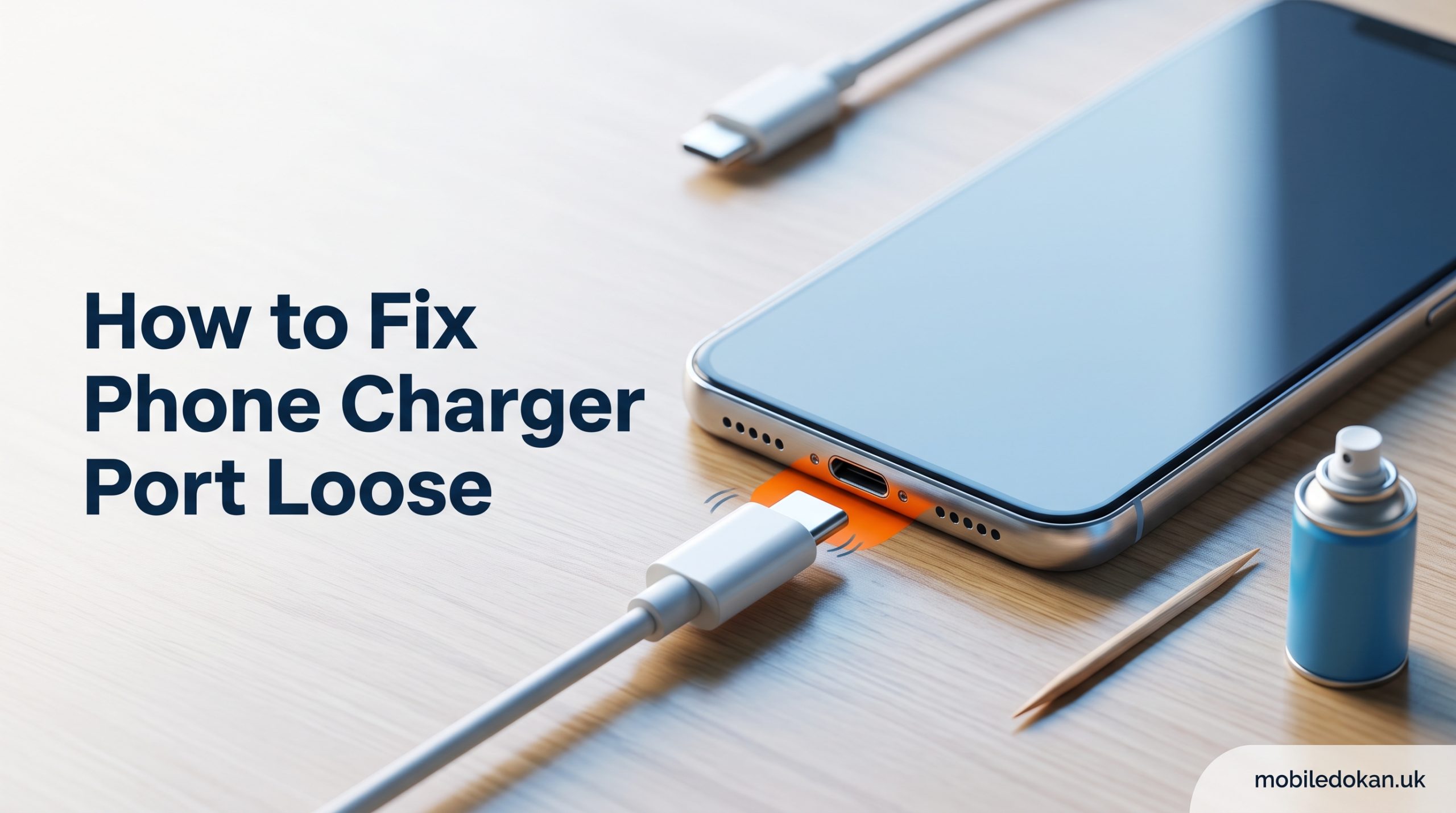
How to Fix Phone Charger Port Loose: There’s nothing quite like frantically plugging your phone charger into your device at 2% battery, only for it to flicker on and off as it struggles to connect. If you have to wiggle your charging cable at a precise angle to get it to charge, prop your phone up against the wall to avoid it falling, or find yourself staring in horror as it goes from 2% to 25% charge then back down to 25%, you’re likely dealing with a loose charging port.
A loose or wobbly phone charging port is a fairly common problem across cell phone owners. One that can often be fixed without heading to a repair shop. In this guide, we’ll cover the most common causes of a loose charging port on your Android or iPhone, how to identify the issue. Possible DIY fixes for all kinds of charging ports, including Type-C, Micro USB (Type-B), and iPhone’s Lightning port. We’ll also discuss when it’s best to bring your phone to a professional repair shop.
Why is your phone charging port loose and not working?
Before we open up your device and start poking around, let’s briefly go over the most common causes of a loose or faulty cell phone charging port. These include:
- Lint, dust and pocket gunk: Over months and years of pocket-surfing, pocket lint and bits of fabric and hair can work their way into your charging port and prevent a proper connection.
- Bent or worn-out connector pins: Repeated plugging and unplugging can cause the small metal pins in your charging port to bend or wear out, especially if you always plug in your cable at an incorrect angle.
- Physical damage: Dropped phones, especially while charging, can cause the charging port to shift slightly out of its usual position.
- Worn-out charging cable: The cable you use to charge your phone can also be worn out, causing similar issues.
- Moisture or corrosion: Phone charging ports can corrode over time due to exposure to wet environments, which can also prevent a stable connection.
Identifying the issue beforehand can help you avoid unnecessary steps later.
How to diagnose the problem before you begin
Some basic troubleshooting can help narrow down the issue before doing any major work on your phone. Some of the following tests should be done with a trusted cable (not the one that came with your phone, if possible):
Test with a different cable and charger
Test with a friend’s charging cable, or one you otherwise trust. If your phone charges fine with the new cable, it likely means your original cable is faulty.
Look inside your charging port with a flashlight
Look for visible signs of lint and pocket gunk, greenish or whitish corrosion, or bent or out-of-place metal pins. This will give you an idea of whether there’s gunk or physical damage inside your charging port.
Wiggle test
Insert the charging cable and wiggle it from side to side and up and down while watching the phone’s charging indicator. If the phone only charges while you’re wiggling the cable, it’s a good sign that the issue lies within the phone, not the cable itself.
Look for physical damage to the port
Using a flashlight, inspect the charging port for physical damage, such as cracks, or if it doesn’t appear to be aligned the way it should. If the port seems to be leaning to one side or has a bent or broken edge, it may be damaged.
How to fix loose charging port Type-C
Type-C charging ports have become incredibly popular across Android phones and accessories, plus newer iPhones. That’s because they tend to be durable and have faster charging speeds than Micro USB. They also boast the handy ability of being able to be inserted face up or down. Here’s how to fix a loose charging port Type-C:
Power off your phone
Make sure your phone isn’t powered on before beginning any work on your charging port.
Clean your charging port
Use one or more of the following cleaning tools to remove any gunk or lint from your port:
- Compressed air: A burst or two of compressed air angled at a slight upturn can dislodge any loose lint or gunk from the inside of your charging port.
- Wooden or plastic toothpick: Gently run the toothpick along the bottom of your charging port (avoid the sides, where the metal pins are) to loosen any debris from the inside of the port. Avoid using metal picks, as they can bend or damage the charging port pins and cause a short.
- Soft-bristled brush: A soft bristled old toothbrush or an anti-static brush can help loosen and remove gunk from inside your charging port.
Read Also: How To Fix Phone Not Connecting To PC: Complete Guide
Check the connector tongue
Type-C ports have an internal tab that the charging cable clicks into when inserting it into the phone. If the tab appears bent or out of place, it can be gently pushed back into position with a plastic toothpick. Use caution, as this tab can be fragile and easy to break.
Test your charging port
Insert a trusted charging cable and see if the loose port issue persists. If the issue persists after cleaning, there’s likely an issue with the internal connections of the charging port, which likely requires professional repair.
How to fix loose charging port Type-B (Micro USB)
Older Android phones and some accessories use the Micro USB or Type-B charging port. Type-B ports tend to be more delicate than their Type-C counterparts, and the small internal tab can be bent out of place fairly easily. A loose Type-B charging port on your Android phone is often caused by the internal tab being bent or broken. Here’s how to fix it:
Power off your phone
Make sure your phone isn’t powered on before beginning any work on your charging port.
Use a flashlight to examine the charging port
Check if the internal metal tab has been bent or broken. Avoid touching the metal pins of the port with any metal objects, as it can cause a short.
Fix the bent tab
If the tab has simply bent out of place, it can be carefully pushed back into position with a fine, non-metallic tool. Gently remove any lint or gunk from the charging port with a toothpick or compressed air. If the tab has been broken, it may require professional repair. Since Type-B ports tend to be more delicate than Type-C, it may be best to leave the repair to a professional if the internal tab is broken.
How to fix loose charging port iPhone (Lightning port)
Apple’s proprietary iPhone charging port (Lightning port) tends to be even more finicky than Type-B or Type-C, primarily because of the internal lint trap. A loose iPhone charging port tends to have one cause and one cause only: lint.
How to fix your loose iPhone charging port
Hold down the side button and volume button until the power off slider appears.
Check your charging port for lint
iPhone charging ports are notorious for attracting lint due to the tight fit of the Lightning connector. Shining a flashlight inside the port at an angle can help reveal any lint buildup.
Clean out the charging port
Use a new SIM eject tool or wooden toothpick to loosen any gunk or lint that may be blocking the Lightning connector. Work from the back of the iPhone charging port towards the front to lift lint out of the port. Compressed air can help loosen and remove stubborn gunk. Avoid using a cotton swab to clean the charging port, as the lint from the swab can also get lodged in the port.
Prevent future lint buildup
Apply a small amount of rubbing alcohol to a lint-free swab. Gently run the swab along the length of the Lightning connector, taking care not to get any moisture on the sensitive electronics. Hold the swab in place for a few seconds to allow the alcohol to evaporate.
Look for signs of corrosion
If your iPhone has been exposed to moisture, there may be signs of corrosion in the charging port. Signs of corrosion can be addressed on a case-by-case basis. Mild corrosion can be gently cleaned with isopropyl alcohol, while more severe cases may require the expertise of a professional repair technician.
Consider using MagSafe or wireless charging as an interim solution
If your iPhone is compatible with MagSafe or Qi-certified wireless charging, you can take advantage of the convenience of wireless charging during the interim period.
How to fix phone charger port loose on Samsung and other android devices
Samsung phones and most other Android devices use either Type-C or Micro USB (Type-B) charging ports. They follow similar cleaning and repair procedures as mentioned in the previous sections. Samsung phones and Android devices have a couple of additional tricks that may come in handy.
How to use Samsung’s maintenance mode
Many Samsung devices have a built-in maintenance mode that allows you to test the functionality of the charging port. To access the maintenance mode on your Samsung device, navigate to Settings > Battery and Device Care or try entering # 0 # on the phone’s dial pad. This should open up a menu that contains a USB connector test option, which can help determine if the issue is software-related.
Samsung’s “moisture detected” message
If your Samsung device displays a warning message that moisture has been detected in the charging port, it may be the result of a combination of lint, gunk. Corrosion in the port. To clear this warning, simply try cleaning the charging port of your Samsung device with a toothpick and compressed air as instructed in the appropriate section.
Additional steps for Android
- Power off your device.
- Clean the charging port with a toothpick and compressed air.
- Check your phone’s settings for any built-in USB diagnostic tools.
- Test with a different charging cable and charging brick.
If your phone still won’t charge, avoid using third-party charging accessories and opt for a factory-authorized charging cable instead.
Loose charging port hack: quick fixes
The following loose charging port hacks are ideal for getting your phone to charge while you’re away from home or unable to fix the problem immediately. These should only be used as temporary fixes until you can thoroughly clean or replace your charging port.
The wedge trick
Using a small strip of paper or a toothpick, wedge it along the side of your charging cable to apply gentle pressure and keep the charging cable securely in place. Use extreme caution while using this method, as leaving foreign objects in the charging port can cause damage.
Angle your phone correctly when charging
Charge your phone at the angle in which it charges the best and place it in a stable position so it doesn’t fall.
Try using wireless charging
If your phone is compatible with Qi or MagSafe wireless charging, you can use it as a convenient interim solution for a loose charging port.
Try using a magnetic charging adapter
Magnetic charging adapters that keep a separate magnetic tip connected to your phone’s charging port can reduce the strain on the internal charging port, as you’re no longer sliding a charging cable in and out of the charging port every time you want to charge your phone.
When to see a professional
While most loose port issues can be solved with a trip to the nearest electronics store and some basic cleaning, there are a few instances where a professional repair service may be necessary:
- If the charging port is visibly damaged
- If thorough cleaning and testing with multiple charging cables hasn’t resolved the issue
- If you notice a burning smell, unusual heating, or your phone won’t power on at all
- If your phone has a history of exposure to water and shows signs of corrosion
- If your phone is still under warranty – opening it up could void any warranty coverage
In such cases, it’s best to leave the repair to a professional service. Professional repair shops usually replace the entire charging port assembly, which is a delicate soldering process that requires proper tools and expertise.
Frequently asked questions
Why is my phone charging port suddenly loose?
The most common reasons for a sudden loose charging port include lint and pocket gunk buildup in the charging port, a faulty charging cable, or simply physical damage to the charging port.
Can I fix the loose charging port myself?
Yes, a loose charging port can usually be repaired with some basic cleaning, although it can also be the result of physical damage.
Is it safe to use metal objects to clean my charging port?
No, it’s best to avoid using metal objects to clean your charging port, as it can cause damage and a short.
Does a loose charging port mean I need a new phone?
No, a loose charging port rarely means you need a new phone, as both cleaning and repair are usually fairly simple processes.
Why does my phone only charge at an angle?
This can be an indicator of a faulty charging cable, but it’s often caused by the internal metal pins in the charging port becoming worn or bent.
Read Also: How To Fix Phone Screen Unresponsive Touch
Conclusion
A loose and faulty charging port on your phone can be extremely frustrating. As you can see, most common causes of a loose or faulty charging port can usually be easily resolved with some basic cleaning and maintenance. Remember to always test with a different, trusted USB charging cable before opening up your device, and to never use metal objects to clean your charging port. If cleaning doesn’t seem to have resolved the issue, leave it to the professionals, as attempting to repair it yourself can cause unnecessary damage to delicate internal components.